 Photo Print
What you need to start
- The Photo Print app and one photo on your phone.
- A printer that your phone can already print to.
- A4 or Letter paper, glue or tape, and scissors.
Steps
Open Photo Print and tap Poster.
Pick one photo. It can also be one page of a PDF.
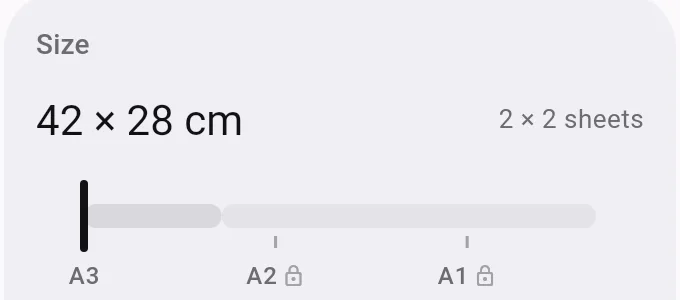
Drag the size slider. It shows the final size, for example 42 × 28 cm, and how many sheets that takes, for example 2 × 2. Tap the size to type your own.
Look at the preview. The grid shows where the sheets meet, and each sheet has a number.
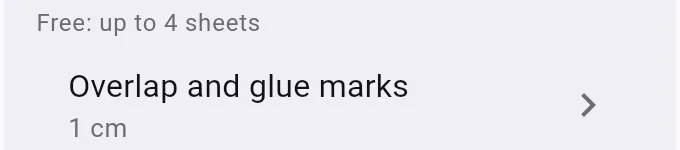
Tap Overlap and glue marks to set how far the sheets overlap: 0, 5, 10, 15 or 20 mm. The default is 10 mm.
Tap Print. The button shows the number of sheets. The print dialog of your phone opens, and you pick your printer.
Cut off the strip with the dashed line on the left and top of each sheet. Put the grey glue band of one sheet under the next, lay the sheets out by their numbers, and glue them.


If the print looks wrong
- Your printer leaves white edges: raise the overlap so the sheets still meet.
- The poster has too many sheets: drag the slider to a smaller size.
- The sheets are the wrong size: tap the paper button under the preview and pick A4 or Letter.
- You want the poster to print at the size the file already has: pick a PDF page. The app then offers Real size.
What costs nothing
Posters of up to 4 sheets are free. Bigger posters, up to 25 sheets, need the one-time unlock.