 Photo Print
What you need to start
- The Photo Print app and up to 12 photos on your phone.
- A printer that your phone can already print to.
- A4 or Letter paper.
Steps
Open Photo Print and tap Calendar.
Pick your photos, one for each month.
Tap 1 month for a single page, or 12 months for the whole year.

Tap Starts and pick the first month.
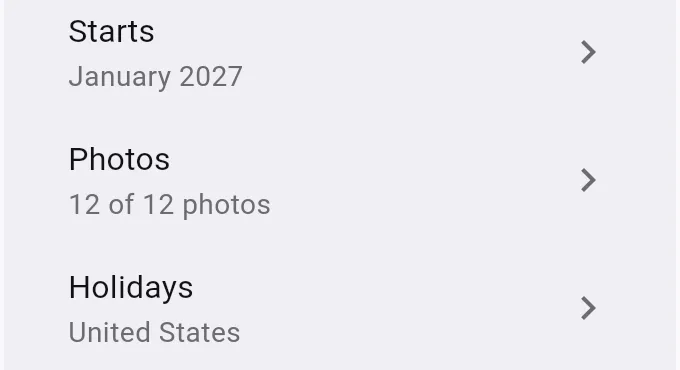
Tap Photos to see a grid of the months. Hold a photo and drag it onto another month to swap them. Tap a photo to replace it, move it to another month or remove it. An empty month shows Add photo.
Tap Holidays and pick your country to print its public holidays. Pick Off to leave them out.
Tap a day on the page to write a short note of up to 40 characters. It prints under the day number.
Tap Print, or open the menu with the three dots and tap Save PDF or Share PDF.


Good to know
- The names of the months and the first day of the week come from your phone.
- The app does not repeat a photo by itself. A month with no photo prints with a blank space for one.
- If you pick more photos than months, the extra photos stay in the project and do not print.
If the print looks wrong
- A holiday is missing or wrong: holidays come from the country you pick, so check the country under Holidays.
- A photo is cut off: tap the photo and open its crop controls.
- The calendar starts in the wrong month: tap Starts.
What costs nothing
Free: one month, with holidays and notes. The full 12-month calendar needs the one-time unlock.