 Photo Print
What you need to start
- The Photo Print app and the photos on your phone.
- A printer that your phone can already print to.
- A4 or Letter paper.
Steps
Open Photo Print and tap Photos on a page.
Pick your photos. The finished page appears at once.
Under Fill the page, tap how many photos go on one page: 1, 2, 4, 6 or 9.
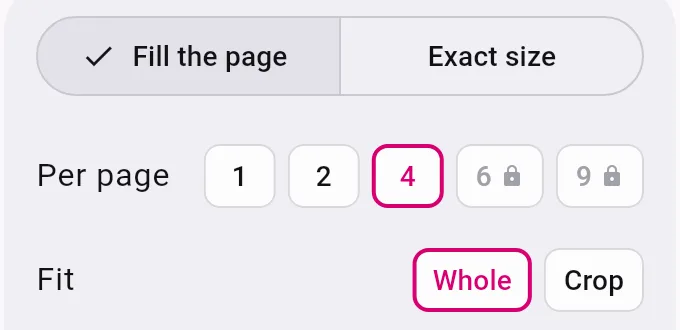
Tap Whole to keep each photo uncut, or Crop to fill each space.
To change the paper, tap the paper button under the page. It shows the size and direction, for example A4 · Landscape. There you can also set the margins.

To see how the page looks on a black-and-white printer, tap the black-and-white button beside it.
Tap Print. The print dialog of your phone opens, and you pick your printer. To keep the page instead, open the menu with the three dots and tap Save PDF or Share PDF.


Photos at a true size
Tap Exact size instead of Fill the page, then pick a size such as 10 × 15 cm. The app crops each photo to that size, turns it to save paper and fits as many as it can on the page. Cut lines are optional in the paper settings.
If the print looks wrong
- A photo is cut off: tap Whole instead of Crop.
- The photos are too small: put fewer on a page, or set the margins to Small or None in the paper settings.
- The page is the wrong size: tap the paper button and pick A4 or Letter.
What costs nothing
Free: 1, 2 or 4 photos on a page, and one exact size (9 × 13 cm, or 3.5 × 5 in). 6 and 9 photos on a page, and all other sizes, need the one-time unlock.
Other ways to print several photos on one page
You can paste the photos into a document, resize them by hand and print the document. It works, but you do all the layout yourself.